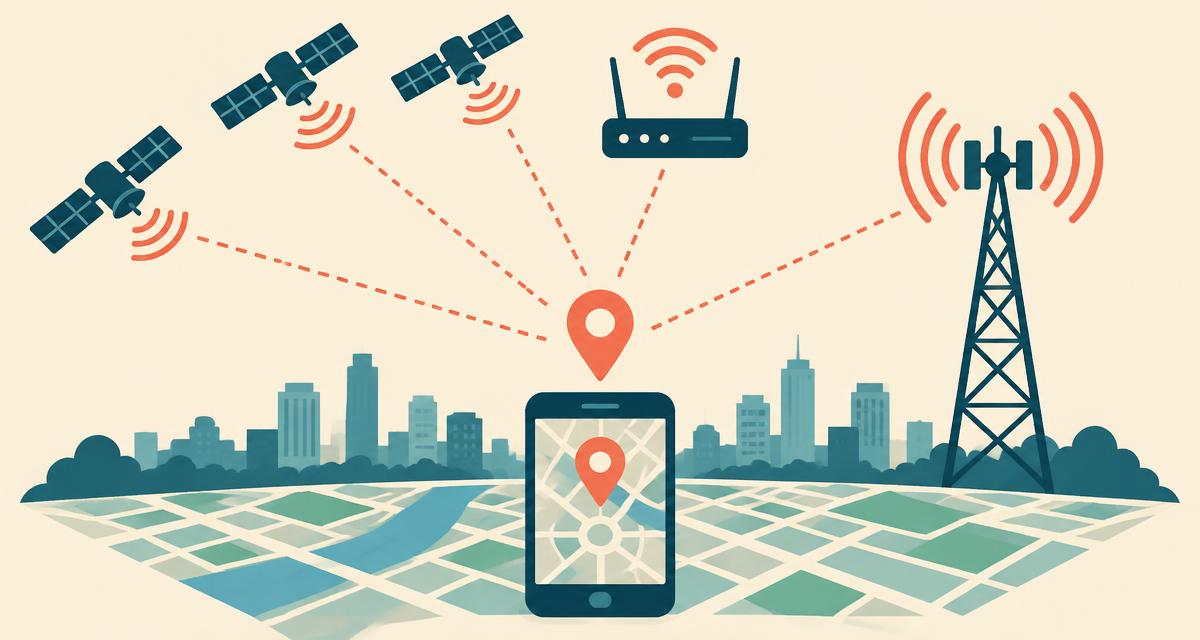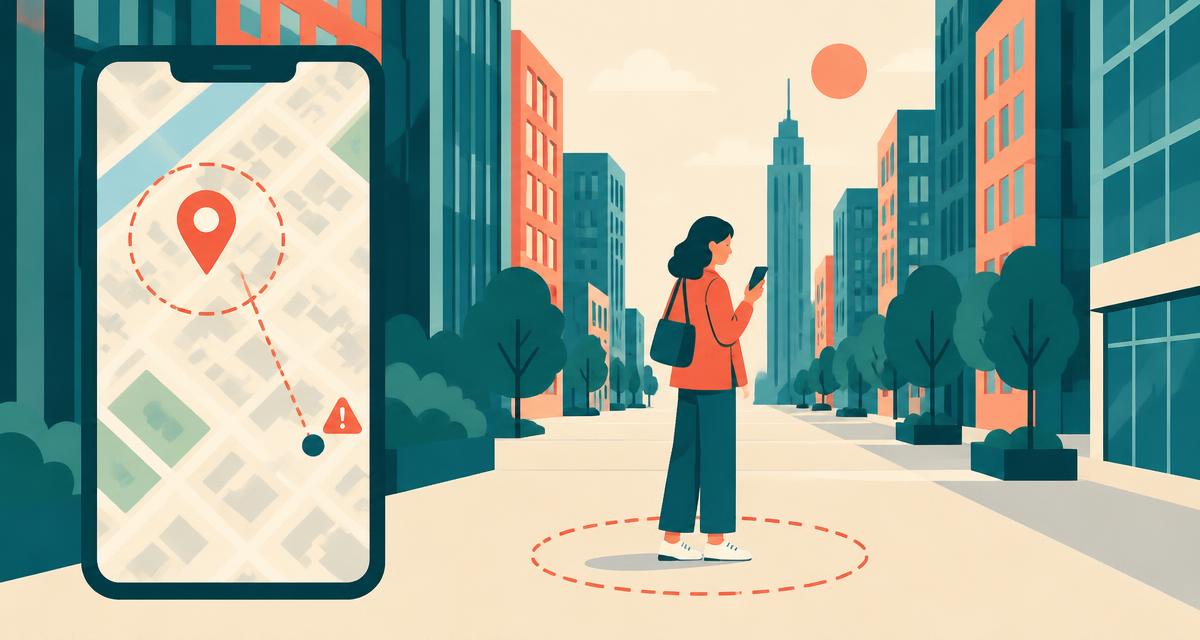
You open a map and the blue dot says you're two streets away — or in a different city entirely. It's one of the most common tech frustrations, and the cause is almost always one of a dozen things. Work through this guide in order: the most likely culprits come first.
Step 1: Diagnose with the accuracy radius
Run the where am I right now locator and look at the accuracy value. It reports estimated uncertainty, not the positioning method used:
| Radius shown | Interpretation | What to do |
|---|---|---|
| Up to 20 m | A relatively small estimated area | Verify the building and mapped address |
| Over 20–100 m | May include several buildings | Compare street signs; refresh in a safe open place |
| Over 100 m–3 km | A broad area | Check precise location and available signals |
| Over 3 km | Too coarse for a street address | Check permissions and compare another map app |
The 12 most common causes — and fixes
1. You're using a VPN or proxy
A VPN moves your IP location to the server's city. Sites that use IP location — shopping sites, streaming services, search engines — will think you're there. GPS-based tools are unaffected. Fix: turn the VPN off, or use a GPS-based tool. Read more in does a VPN hide where I am?
2. Location permission is blocked
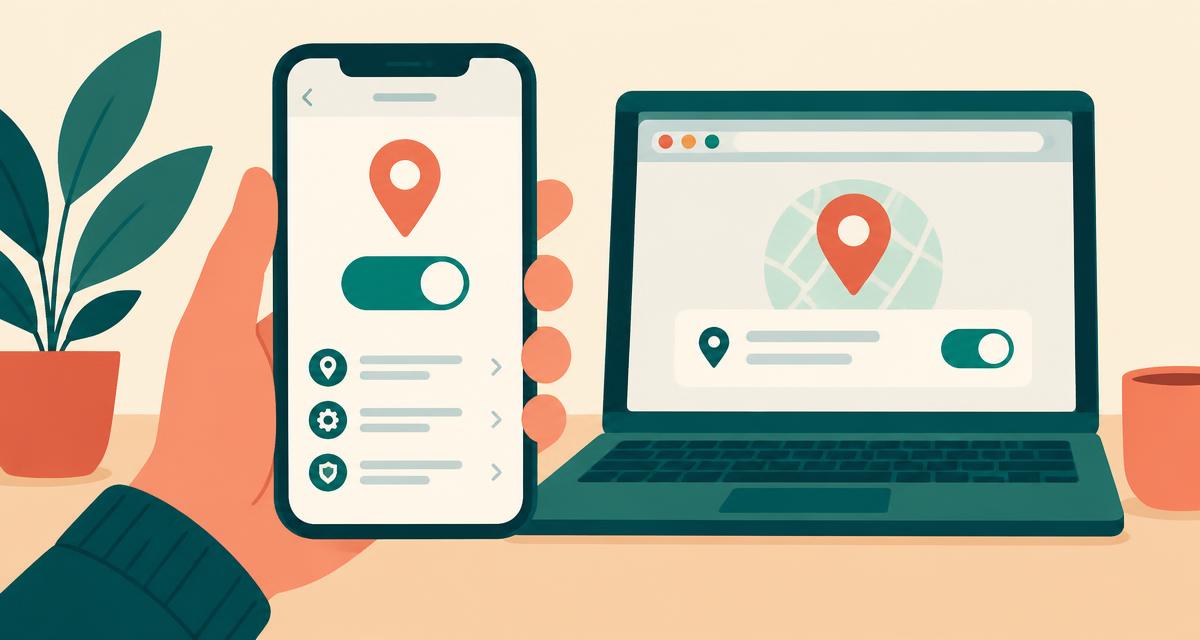
If you clicked "Block", this tool shows an error and links to the separate IP lookup; it does not silently fall back. Fix: click the site settings icon in the address bar and set Location to Allow. Full steps are in our location services guide.
3. Precise location is off
iPhone and Android both let you share only an approximate location, accurate to around 3 km. Fix: on iPhone go to Settings → Privacy & Security → Location Services → [your browser] → Precise Location. On Android go to Settings → Location → App permissions → [browser] → Use precise location.
4. Wi-Fi is turned off
Even when you're not connected, scanning nearby networks massively improves accuracy indoors. Fix: switch Wi-Fi on. On Android, also enable Wi-Fi scanning under Location services.
5. You're on a computer without GPS
Desktops on Ethernet with no Wi-Fi adapter can only use IP location. Fix: use your phone, or enable Wi-Fi on the computer.
6. You're indoors or between tall buildings
Concrete, metal and glass block and reflect satellite signals. Fix: stand near a window or step outside for 30 seconds, then refresh.
7. The fix is stale
The first position reported is often a quick cell-tower estimate or a cached location from earlier. Fix: wait a few seconds and tap Refresh.
8. Battery saver is limiting location
Low-power modes often reduce GPS use. Fix: turn off battery saver temporarily, or on Android set location mode to high accuracy.
9. Your Wi-Fi router has moved
If you moved house and took your router, location databases may still place it at your old address for weeks. Fix: compare a fresh reading outdoors with another map. You cannot force a provider's database update by refreshing this website.
10. Mobile data routes through another city
Mobile carriers often assign IP addresses from a regional hub hundreds of kilometres away. Fix: rely on GPS rather than IP location; switch to Wi-Fi to see a different IP.
11. Your compass needs calibrating
If the dot is right but the direction arrow is wrong, calibrate the compass: in Google Maps tap the blue dot → Calibrate, or move your phone in a figure-eight.
12. The map data is incomplete
Sometimes your coordinates are perfect but the nearest house number is missing from the map, so the address shown is a neighbour's. Fix: check the pin on the map. You can add missing addresses at openstreetmap.org.
Device-specific quick fixes
- iPhone: Check site and device permissions first. Reset Location & Privacy only as a last resort: it also resets permissions for other apps.
- Android: Settings → Location → Location services → Google Location Accuracy → On.
- Windows: Settings → Privacy & security → Location → turn on and allow desktop apps.
- Mac: System Settings → Privacy & Security → Location Services → enable for your browser.
Quick checklist
- VPN off (or use GPS-based tools)
- Location services on, precise location on
- Wi-Fi switched on
- Browser allowed to use location for this site
- Battery saver off
- Clear sky view, then refresh