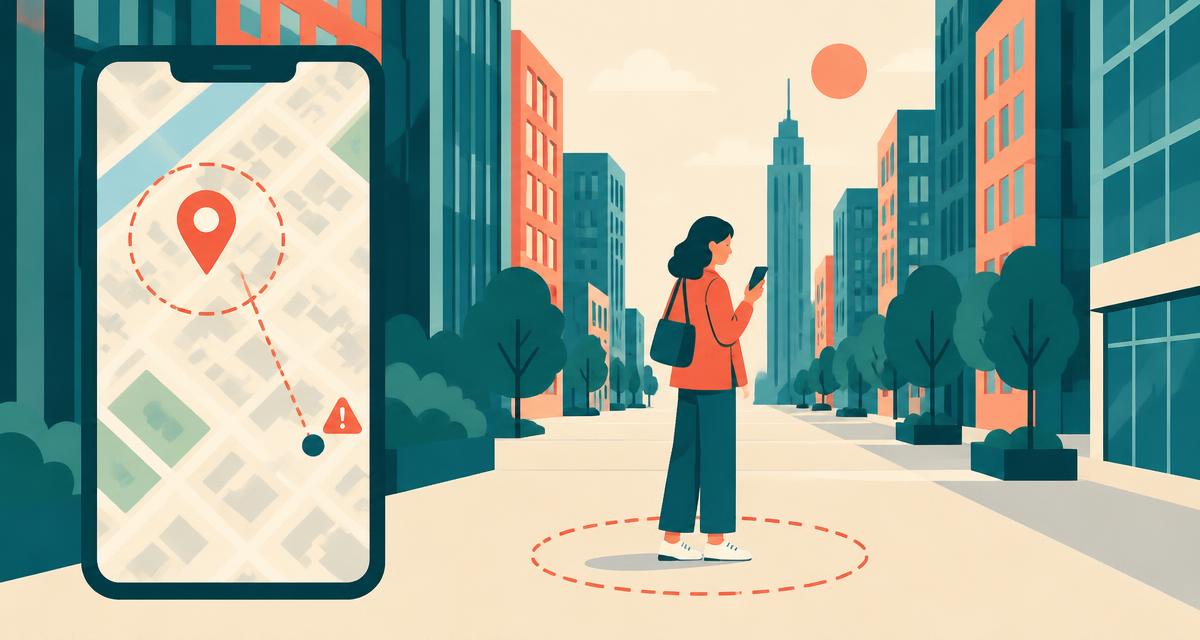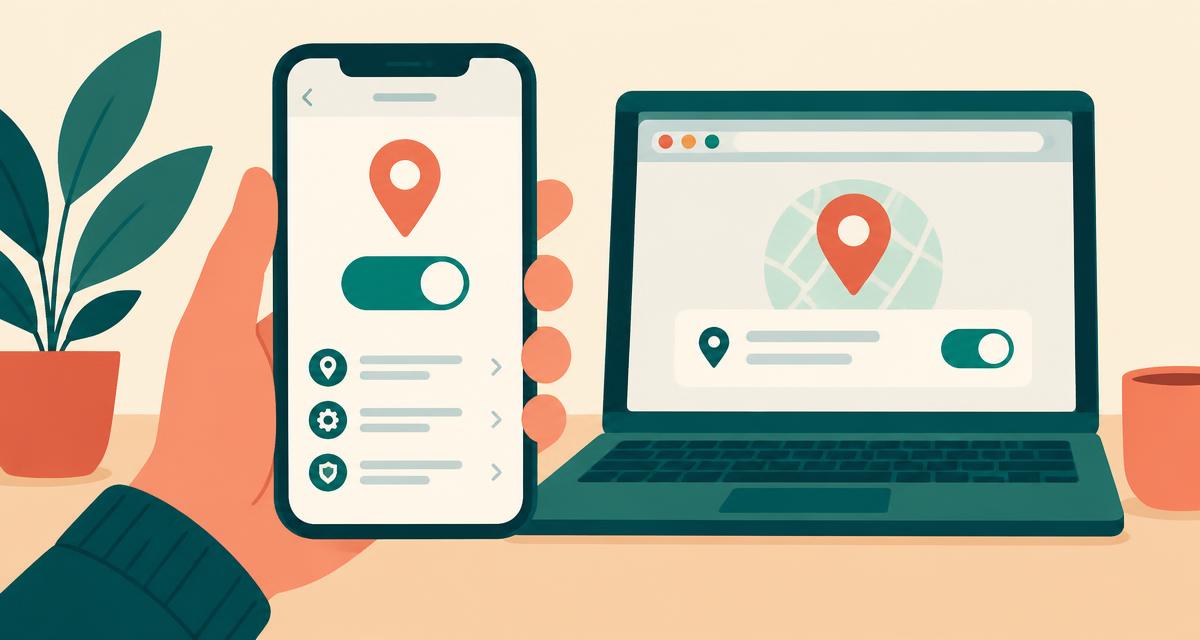
Permission denied can mean a blocked site, system setting or organizational policy. Position unavailable can also mean that the device cannot obtain a fix. Check your device, your browser app and this website. Settings names vary by software version; the steps below are a starting point.
iPhone and iPad
Safari
- Open Settings → Privacy & Security → Location Services and switch it on.
- Scroll down to Safari Websites and choose While Using the App or Ask Next Time.
- Turn on Precise Location.
- Open Settings → Apps → Safari → Location and set it to Ask or Allow.
- Return to the page, tap the button again and choose Allow.
Chrome on iPhone
- Go to Settings → Privacy & Security → Location Services → Chrome.
- Choose While Using the App and turn on Precise Location.
Android phones and tablets
- Swipe down from the top of the screen and tap the Location tile, or open Settings → Location and turn on Use location.
- Tap App location permissions → Chrome (or your browser) and choose Allow only while using the app.
- Turn on Use precise location.
- Under Location services, turn on Google Location Accuracy and Wi-Fi scanning.
- In Chrome, tap ⋮ → Settings → Site settings → Location and make sure it's set to Ask before accessing.
Samsung phones label these slightly differently: Settings → Location → App permissions.
Google Chrome on Windows, Mac or Chromebook
- Click the tune or padlock icon at the left of the address bar.
- Switch Location on, or click Site settings and set Location to Allow.
- Reload the page.
- To check globally, open
chrome://settings/content/locationand choose Sites can ask for your location.
Safari on Mac
- Open System Settings → Privacy & Security → Location Services, turn it on, and enable Safari.
- In Safari, open Safari → Settings → Websites → Location.
- Find this site and choose Allow or Ask.
Microsoft Edge
- Click the padlock in the address bar → Permissions for this site.
- Set Location to Allow and reload.
- Global setting:
edge://settings/content/location.
Mozilla Firefox
- Click the padlock or permissions icon in the address bar.
- Next to Access Your Location, click the × to clear a block.
- Reload and choose Allow when asked.
- Global setting: Settings → Privacy & Security → Permissions → Location.
Windows 10 and 11
- Open Settings → Privacy & security → Location.
- Turn on Location services.
- Turn on Let apps access your location and Let desktop apps access your location.
Still not working?
- Restart the browser after changing system settings.
- Make sure the page uses https:// — browsers never share location with insecure pages.
- Private or incognito windows may ask again each time.
- Work or school devices may have location disabled by an administrator.
- Some privacy extensions block geolocation; try disabling them for this site.
Privacy tips
Choose While Using the App instead of Always, review which sites have permission every few months, and only allow sites you trust. This tool does not save a location history, but sends coordinates to OpenStreetMap services for address lookup and map display. Sharing discloses the captured point to the recipient.